Home Assistant
Show widgets built in the ZerryBit Home Assistant add-on.
The Home Assistant widget puts your smart home on e-ink. It displays a widget you design in the ZerryBit Engine add-on inside Home Assistant — sensor readings, entity states, graphs, whatever you lay out there — so what this widget shows is entirely up to you.
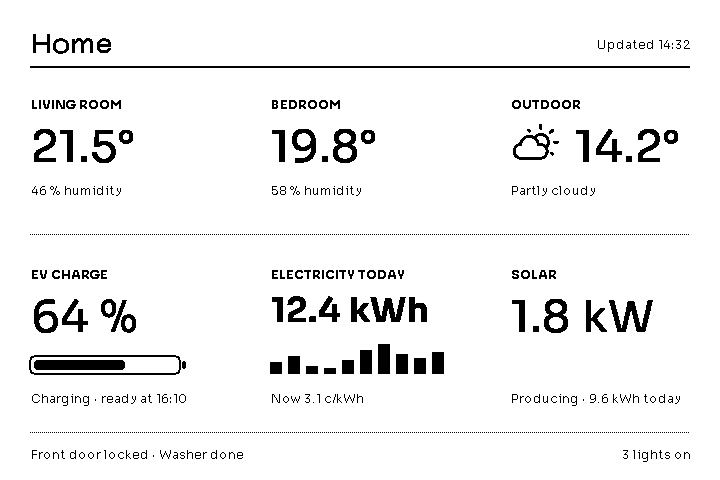
Here's an example of what a full-screen dashboard could look like — room temperatures, an outdoor reading, EV charge state, today's electricity use, and solar output, with a status line along the bottom:
Set up the ZerryBit Engine add-on in Home Assistant first — the widget has nothing to show without it. The Home Assistant guide walks through installing the add-on and building your first widget. The ZerryBit must be on the same network as your Home Assistant.
Adding the widget
Each widget you build in the add-on has its own QR code, opened from the button in the builder's top bar:
- In the app, add a Home Assistant widget to your layout.
- Scan the widget's QR code from the builder. It carries the add-on's address, the widget's ID, and its size, so there is nothing to type.
That's the whole pairing. Edits you make in the builder show up on the device's next refresh by themselves — there is no deploy step in this mode.
- You can add several Home Assistant widgets to one device, each paired to a different builder widget.
- If the builder widget has a fullscreen companion, it pairs through the same QR code: click the widget on the device to open it.
Added a fullscreen companion later? Re-scan the QR
The QR code only carries the fullscreen pairing ID once the companion exists. If you paired the widget first and created the companion afterwards, the device doesn't know about it and shows "No full-screen data" — open the widget in the builder and re-scan its QR code to fix it. Also build the companion at the size the device expects (720 × 480 with the sidebar); a different size shows "Incorrect image size" on the device.
Compatibility
QR pairing needs firmware 1.1 or later and a current version of the add-on. In Self-Host mode this widget isn't used at all — there the device fetches one deployed full-screen dashboard directly from the add-on, as described in the Home Assistant guide.
Sizes
Available in 1×1, 2×1, 1×2, 2×2 and 3×2 (full screen). The QR code carries the builder widget's exact size, so build the widget at the size you want it to occupy on the device.