Event calendar
Your own events on e-ink — connect Google, Microsoft, or any calendar link.
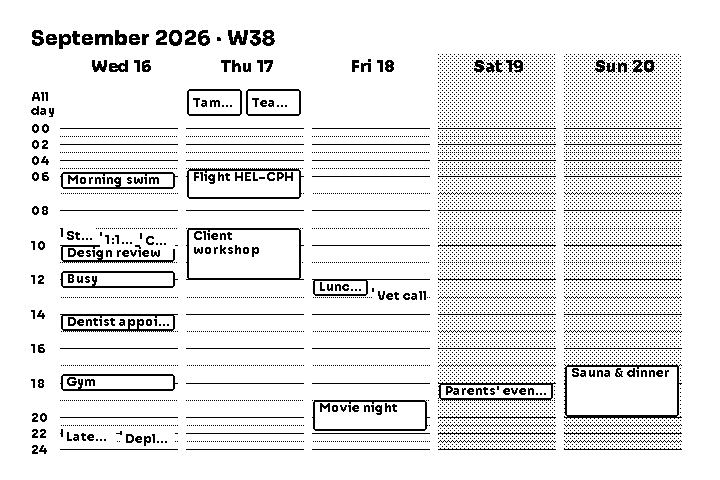
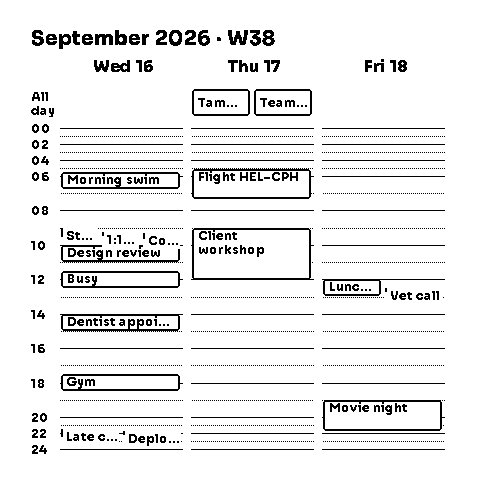
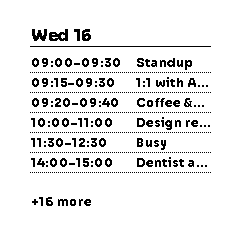
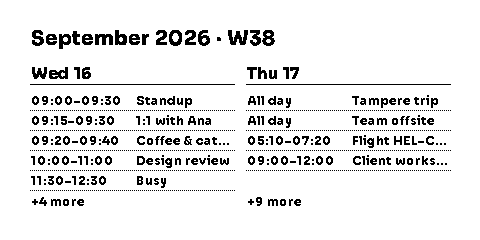
The Event calendar widget puts your real calendar on the wall: connect Google Calendar, a Microsoft account, or any calendar link, and the device shows the next seven days of your events. Large sizes draw a week schedule with days as columns; small sizes show a compact agenda list.
Connecting a calendar
The first time you add the widget, its settings offer to connect a calendar. You can also manage everything under Account & App → Connected calendars in the app. Three ways to connect:
- Connect Google — one tap and a Google sign-in. Events are fetched live from the Google Calendar API, and you pick which of your calendars to include.
- Connect Microsoft — the same one-tap flow for outlook.com and Microsoft 365 accounts.
- Add a calendar link — paste an ICS/webcal address: Google's Secret address in iCal format, an Outlook published calendar, an iCloud Public Calendar, or any other ICS feed (school timetables, sports teams, Nextcloud, …). The app shows step-by-step instructions for each provider.
Work and school Microsoft accounts are sometimes locked down: in many organizations, connecting a calendar needs a one-time approval from the IT admin. If you hit that wall, the calendar link route usually still works — Outlook can publish a calendar as a link you paste in.
Getting a calendar link
- iPhone (iCloud calendar) — open the Calendar app, tap Calendars at the bottom, tap the ⓘ next to the calendar, switch on Public Calendar and tap Share Link to copy it. This is the easiest one — it works right on the phone. Only calendars you own can be published.
- Google Calendar — on a computer, open calendar.google.com, click the gear → Settings, pick the calendar under Settings for my calendars, open Integrate calendar, and copy the Secret address in iCal format. The address isn't shown in Google's phone app, and some workplace accounts hide it.
- Outlook — in Outlook on the web, open Settings → Calendar → Shared calendars → Publish a calendar: pick the calendar, choose Can view all details (so titles show, not just busy/free), publish, and copy the ICS link.
Treat a calendar link like a password: anyone who has it can read that calendar. If a link leaks, reset or unpublish it in the same place you created it and paste the new one into the app.
You can combine several calendars — even from different accounts — into one selection, and the widget renders them merged. A "Work + Personal" selection keeps showing your personal events even if the work connection needs re-authentication.
Schedule view — 2×2 and 3×2
The large sizes draw a real weekly schedule: one column per day (five days at 3×2, three at 2×2), an all-day row on top, and the full 24-hour day down the side. Night hours are compressed so the waking day gets the space. Weekend columns are shaded, and the header shows the month and ISO week.
Agenda view — 1×1, 2×1 and 1×2
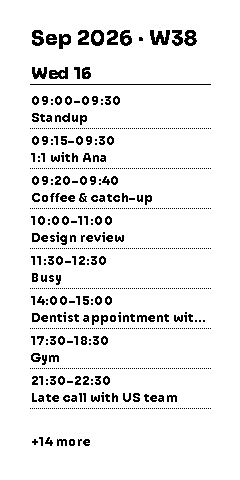
The smaller sizes switch to a time-ordered list: start–end times and titles, with all-day events pinned on top. 1×1 and 1×2 cover today; 2×1 shows today and tomorrow side by side. When there are more events than fit, a +N more line tells you what's left off screen.
How fresh is it?
On the device's normal update schedule, events come from a cache that refreshes about every 15 minutes. Pressing or rotating the Zerry button fetches your calendars live, so a quick press always gives you the current picture.
Calendars connected by link have one extra lag you should know about: the provider regenerates the feed on its own schedule. Google and iCloud links typically update within about 15–60 minutes; an Outlook published calendar can take hours. Google and Microsoft accounts connected with the one-tap flow don't have this lag — they are read live.
Privacy
The widget is built to show as little as possible:
- Only event titles, times, all-day status, and location are fetched. Descriptions, attendees, attachments, and meeting links never leave the provider.
- Events you mark private or confidential always render as Busy.
- The Event details setting turns every title into Busy — for a display in a shared space that should reveal only when you're free.
- Calendar credentials (sign-in grants and link addresses) are stored encrypted on the server, are never sent to the device, and cached events are never included in data exports. Disconnecting removes them.
Settings
| Setting | What it does | Options | Default |
|---|---|---|---|
| Calendar | Picks which connected calendar selection the widget shows, or starts connecting one. | Your selections | — |
| Event details | Whether event titles are shown, or everything renders as Busy for a shared display. | Show event titles, Show only Busy | Show event titles |